SmartPSS Lite Installation Guide
SmartPSS Lite Installation Guide
SmartPSS is the software application that is used to view the live view and playback of your cameras remotely from a laptop or desktop. This guide will take your through the installation process and how to add your device. To do this you will need your username, password, and the serial number of your device, If you do not have these, reach out to us a support@securitylifeinc.com or call (704) 247-4126.
Installation
Download SmartPSS for Windows here: https://securitylifeinc.com/smartpss
Open the downloaded Zip folder and run the .exe file
Agree to the terms and conditions and then select "Next"
Select "Install"
Select "Run SmartPSSLite" and then select "Finish"
Select "Video Monitor" and select "OK"
Select the checkbox and select "Agree"
Select the checkbox and select "Agree"
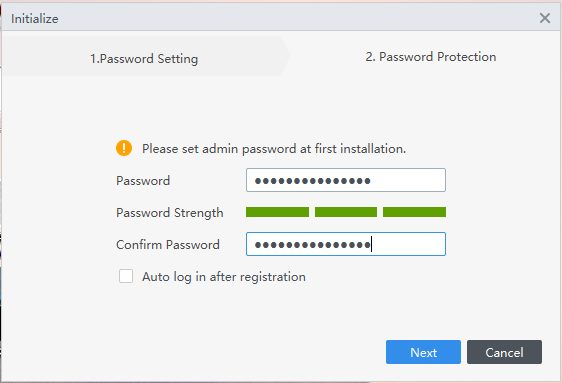
Create a password for the application
Set the security questions
Select "Login"
Adding a Device
Select "Devices"
Select "Add"
Enter a device name, device serial number, username, and password
Select "Add"